Overview
A complete guide to installing Ollama and running the Qwen3:8B model locally on Windows 11.
Steps
1. What is Ollama
Ollama is a tool that lets you run LLMs locally. You can use conversational AI directly from the terminal without cloud APIs, and it automatically leverages NVIDIA GPU acceleration when available.
The advantages of running LLMs locally are as follows.
- Works without an internet connection
- Data never leaves your machine
- No API costs
- Provides a REST API for integration with other apps
2. System Requirements
Ollama works with CPU alone, but it’s much faster with a GPU.
| Component | Minimum | Recommended |
|---|---|---|
| OS | Windows 10 or later | Windows 11 |
| RAM | 8GB | 16GB or more |
| GPU | Not required | NVIDIA (8GB+ VRAM) |
| Disk | 10GB free space | SSD recommended |
The environment used in this post is as follows.
- CPU: AMD Ryzen 5 7500F
- GPU: NVIDIA RTX 4070 (12GB VRAM)
- RAM: 32GB
- OS: Windows 11 64-bit
3. Installing Ollama
Download the Windows installer from ollama.com/download. Run OllamaSetup.exe and the installation completes without any additional configuration.
After installation, verify the version in PowerShell.
ollama --version
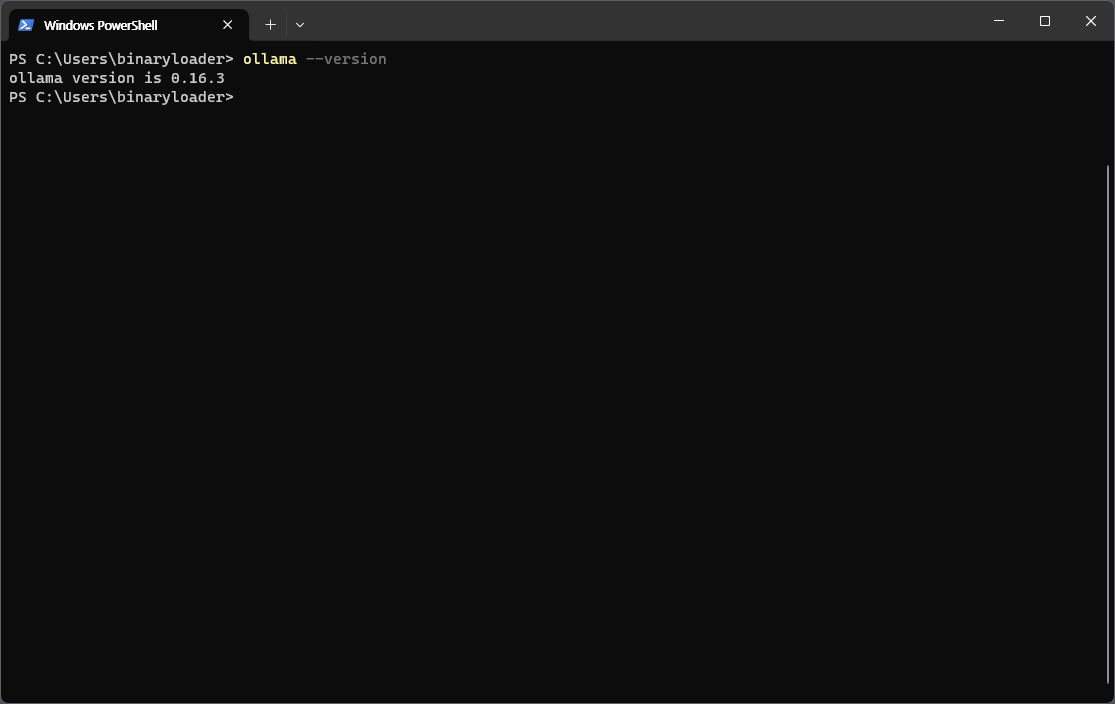
If you see output like ollama version is 0.16.3, the installation was successful.
4. Running Qwen3:8B
Qwen3:8B is an 8-billion parameter model released by Alibaba Cloud. It supports multiple languages including Korean and delivers solid performance for its size.
A single command downloads the model and starts an interactive chat session.
ollama run qwen3:8b
On first run, the model will be downloaded (approximately 5GB). Once the download is complete, you can start chatting immediately.
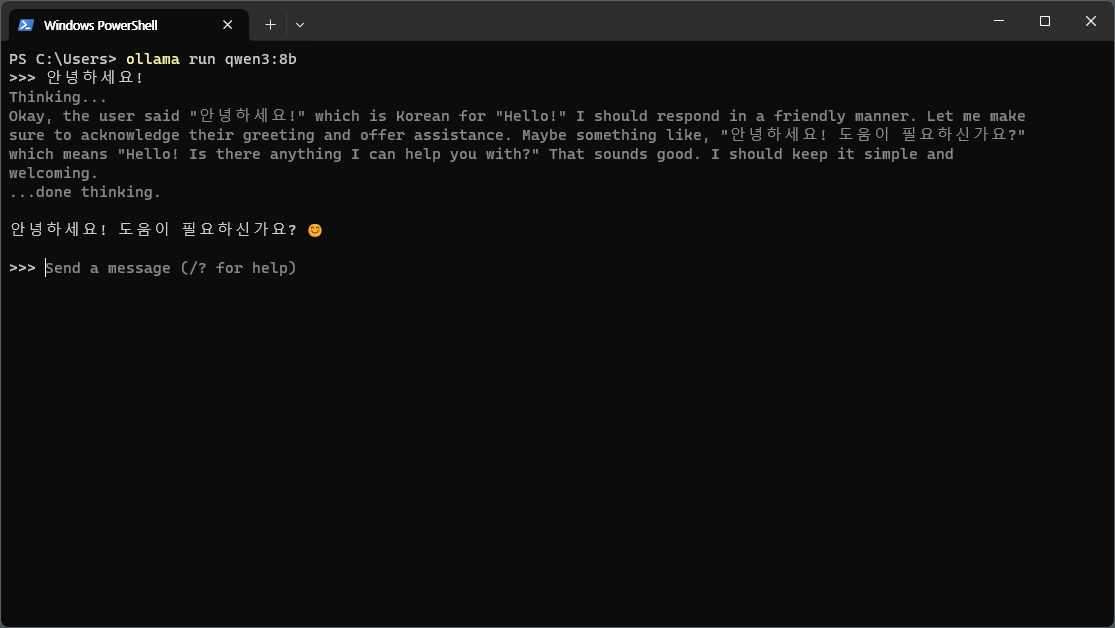
Qwen3 has thinking mode enabled by default, so it goes through a Thinking... process before responding. Type /bye to exit the conversation.
5. Verifying GPU Usage
Ollama automatically detects and uses NVIDIA GPUs. You can check VRAM usage with the nvidia-smi command.
nvidia-smi
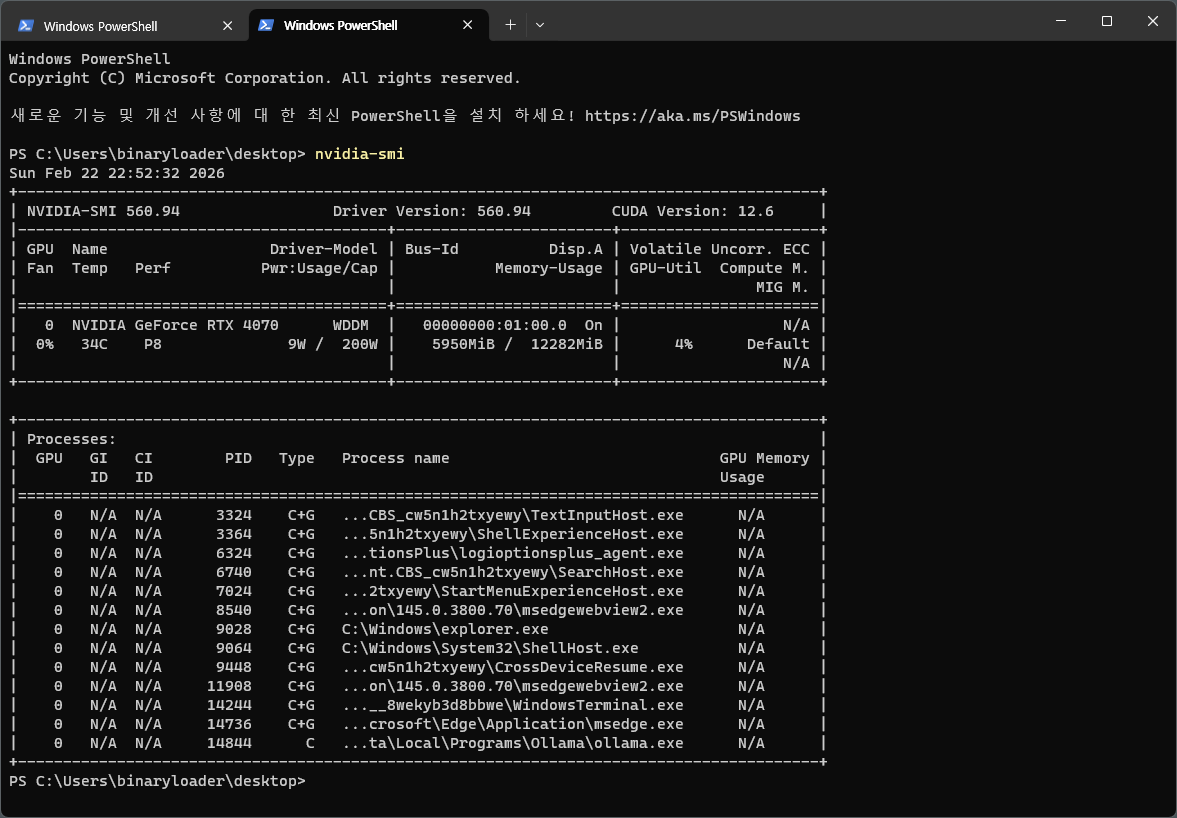
The Qwen3:8B model uses approximately 6GB of VRAM. On an RTX 4070 with 12GB, there’s plenty of headroom.
6. Basic Usage
6.1. Interactive Chat
Enter interactive mode with the ollama run command.
ollama run qwen3:8b
Commands available during a conversation are as follows.
/bye— Exit the conversation/clear— Clear conversation history/set parameter temperature 0.7— Change parameters
6.2. REST API
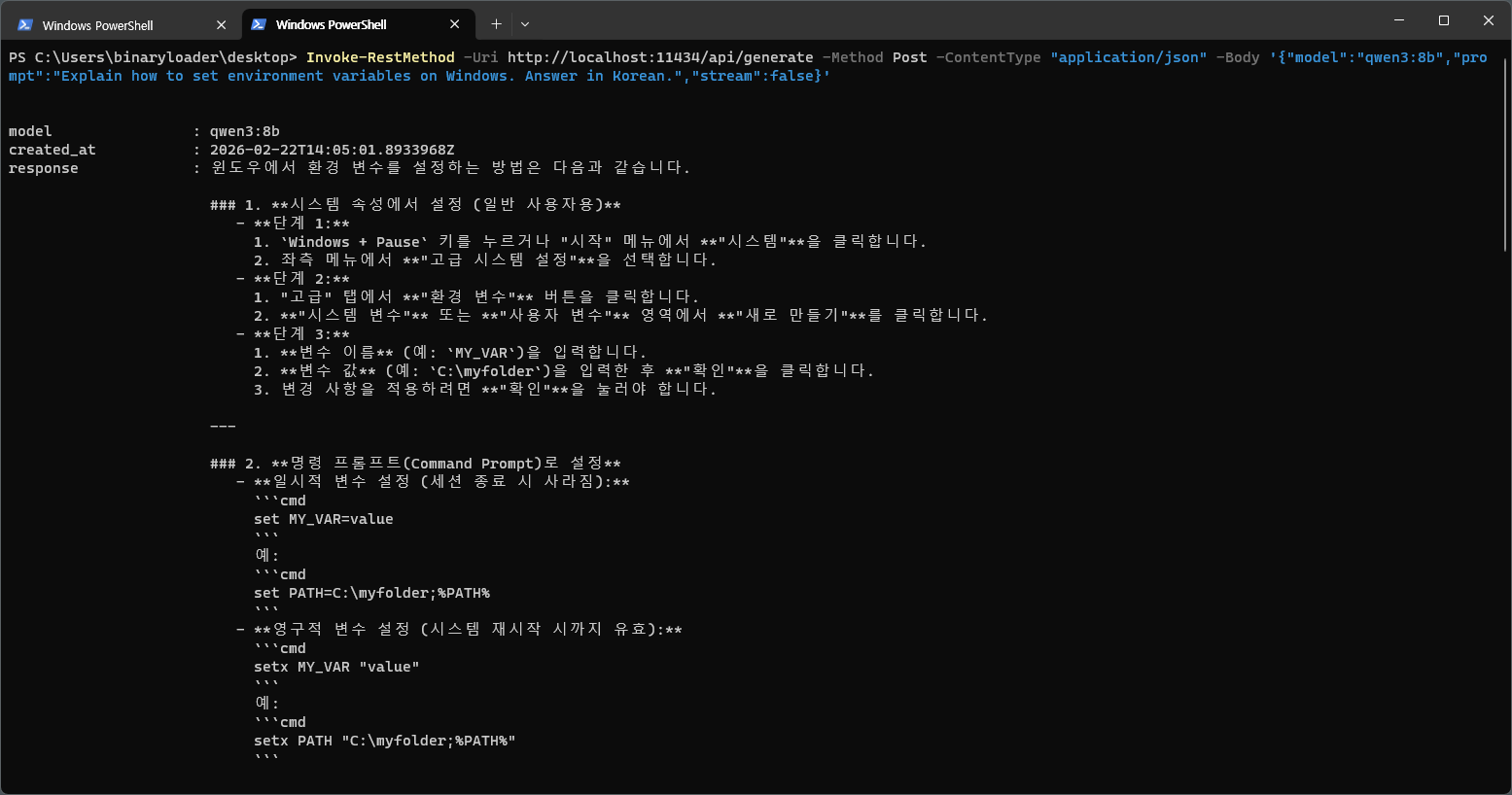
Ollama automatically starts an API server on localhost:11434 upon installation. You can call it directly from other apps or scripts.
$body = '{"model":"qwen3:8b","prompt":"Explain how to set environment variables on Windows.","stream":false}'
Invoke-RestMethod -Uri http://localhost:11434/api/generate -Method Post -ContentType "application/json" -Body $body
7. Useful Commands
| Command | Description |
|---|---|
ollama list |
List installed models |
ollama pull qwen3:8b |
Download a model (without running) |
ollama rm qwen3:8b |
Delete a model |
ollama show qwen3:8b |
Show model details |
ollama ps |
Show running models |
ollama stop qwen3:8b |
Stop a model |

Leave a comment