Overview
How to record both microphone input and system audio simultaneously in QuickTime Player using BlackHole.
Steps
QuickTime Player on macOS can only capture microphone input during screen recording — it cannot record system audio (the sound coming out of your speakers). To record both, you need a virtual audio driver called BlackHole to loop back system audio, then combine it with microphone input into a single input device.
1. Install BlackHole
BlackHole is an open-source virtual audio driver for macOS that enables audio routing between applications. Download the installer from the official site and run it.
Once installed, BlackHole 16ch appears in the device list of Audio MIDI Setup.
2. Create a Multi-Output Device
To hear system audio through your speakers (or headphones) while simultaneously sending it to BlackHole, you need a Multi-Output Device.
Open Audio MIDI Setup, click the + button at the bottom left, and select Create Multi-Output Device.
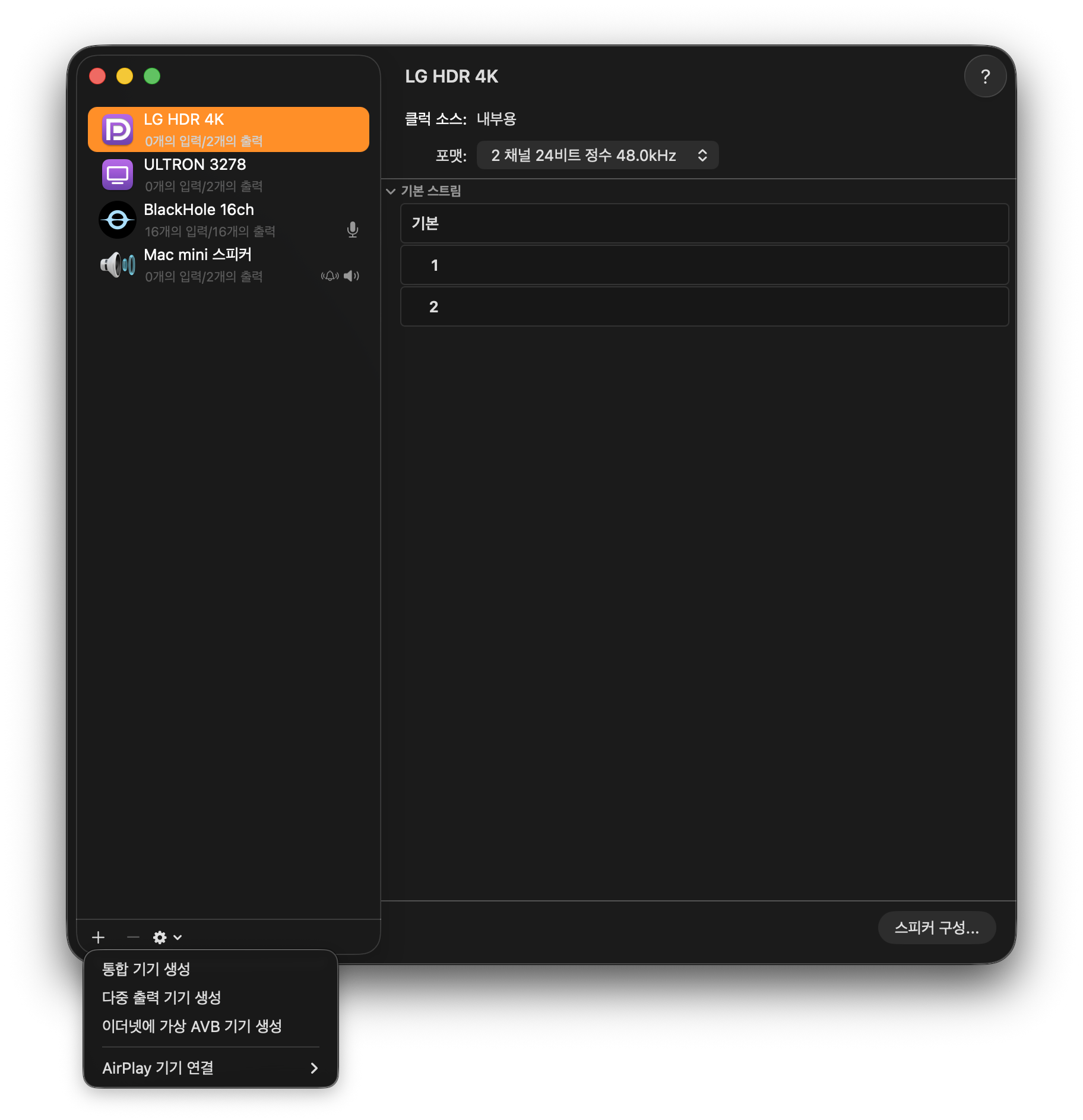 Audio MIDI Setup — click the
 + button at the bottom to create a device
In the right panel, check both your actual output device (AirPods, speakers, etc.) and BlackHole 16ch. Also enable drift correction for BlackHole.
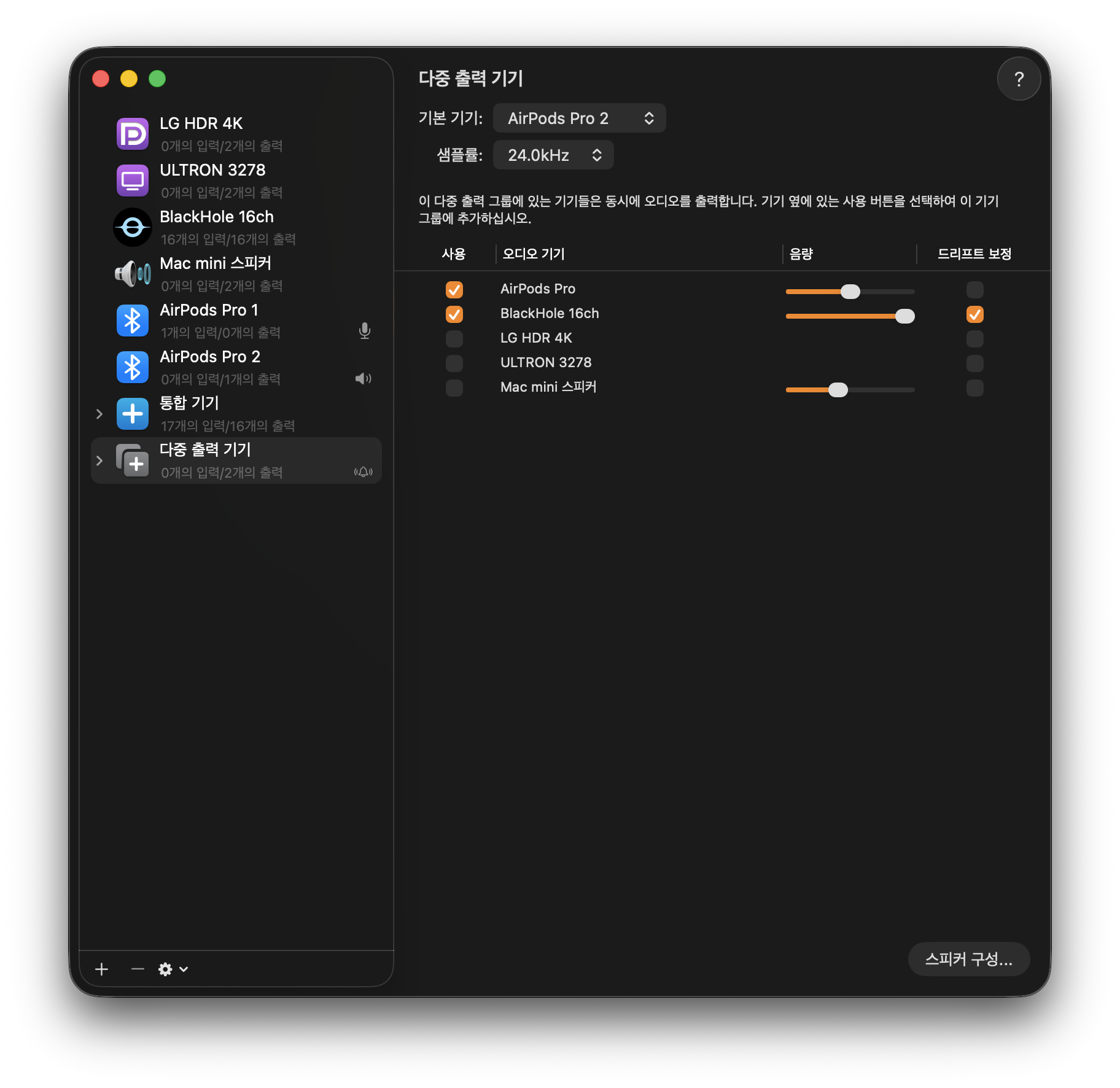 Multi-Output Device — select both your speakers and BlackHole
This routes system audio to both your speakers and BlackHole simultaneously.
3. Create an Aggregate Device
To combine microphone input and BlackHole input into a single device, you need an Aggregate Device.
Click the + button again and select Create Aggregate Device. In the right panel, check both your microphone (e.g. AirPods Pro) and BlackHole 16ch. Enable drift correction for BlackHole.
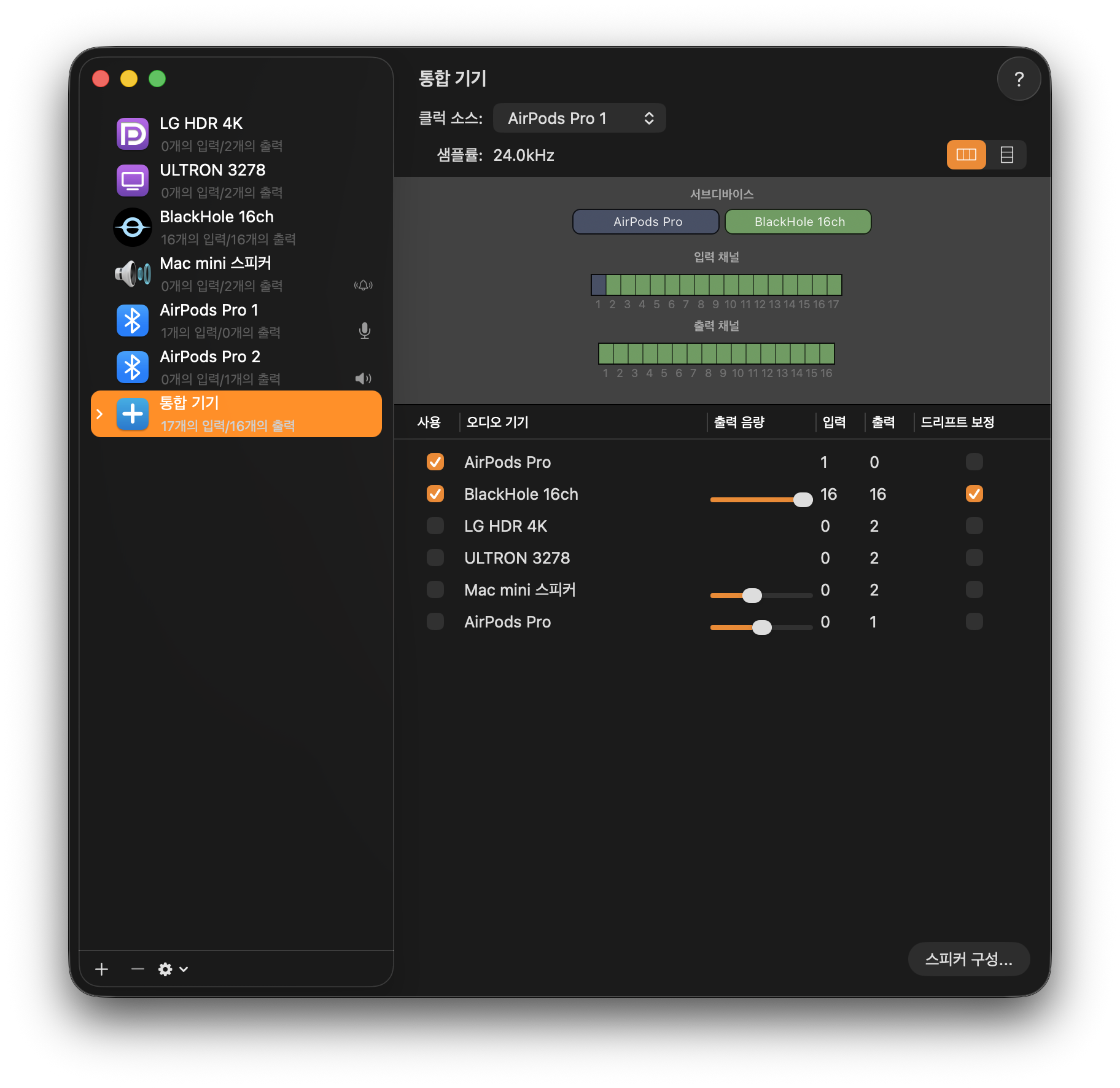 Aggregate Device — combines microphone and BlackHole into one input device
The Aggregate Device merges the physical input channels of your microphone with BlackHole’s virtual input channels, allowing QuickTime Player to capture both sources simultaneously.
4. Change System Output Device
Click the sound icon in the menu bar or go to System Settings → Sound and change the output device to the Multi-Output Device you just created.
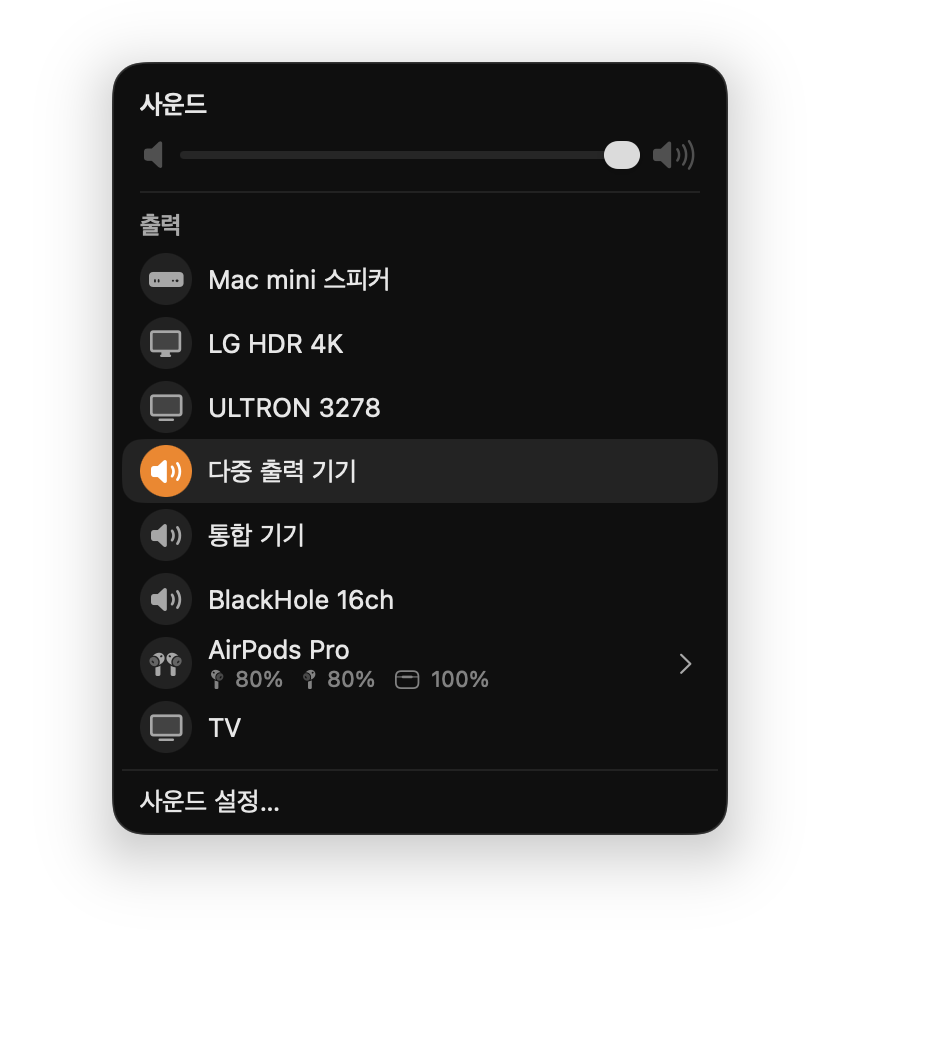 Change sound output to Multi-Output Device
In this state, system audio is sent to both your speakers and BlackHole. You can hear sound normally through your speakers while also routing it to the recording.
5. Record with QuickTime Player
Open QuickTime Player and press ⌘⇧5 or select File → New Screen Recording from the menu. Click Options in the bottom toolbar, and under the microphone section, select Aggregate Device.
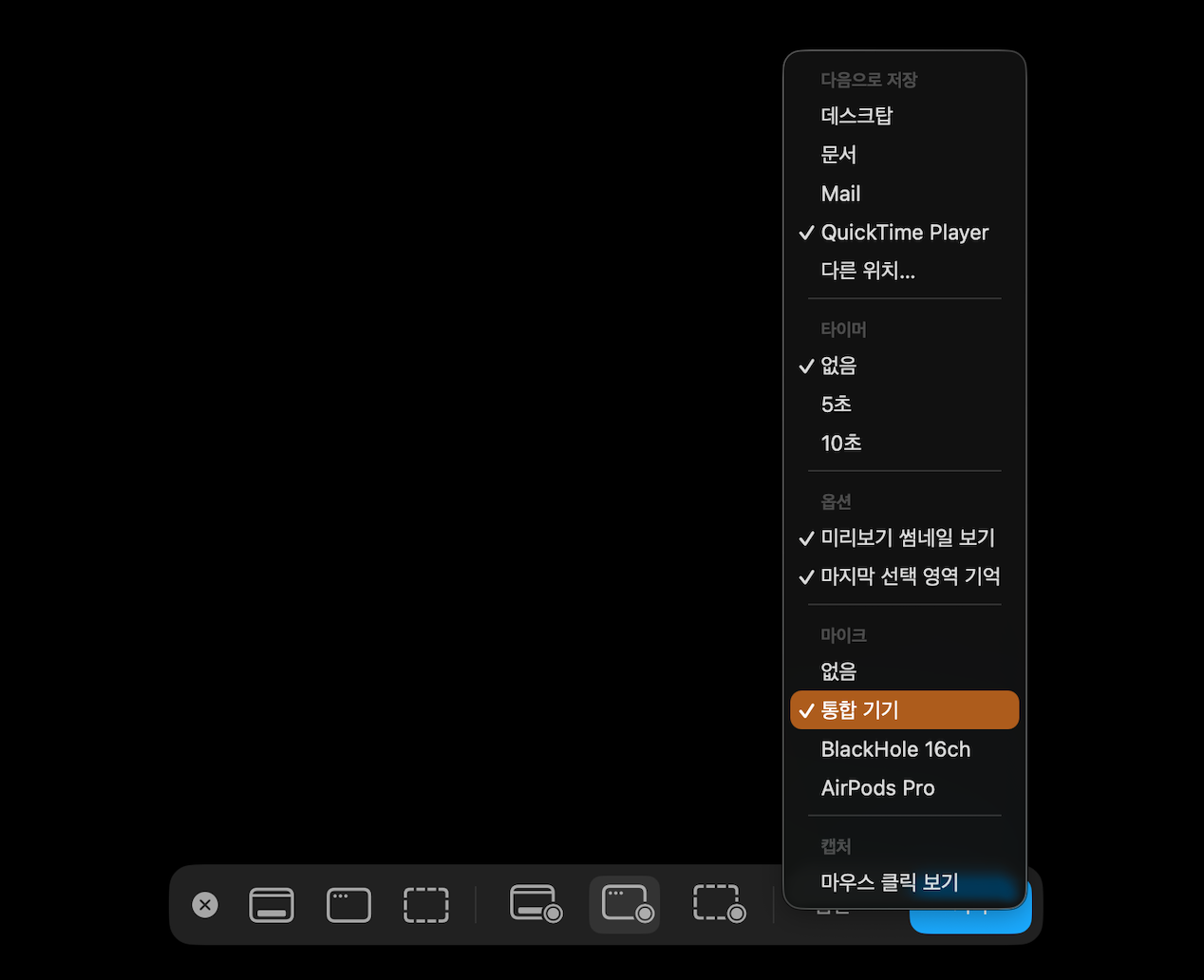 QuickTime screen recording — select Aggregate Device as the microphone
Start recording, and both microphone input and system audio will be captured together.
6. Restore Settings After Recording
After recording, change the sound output back to your original device (speakers, AirPods, etc.). System volume control may not work while using the Multi-Output Device.
7. Uninstall BlackHole
If you no longer need BlackHole, delete BlackHole16ch.driver from /Library/Audio/Plug-Ins/HAL/.
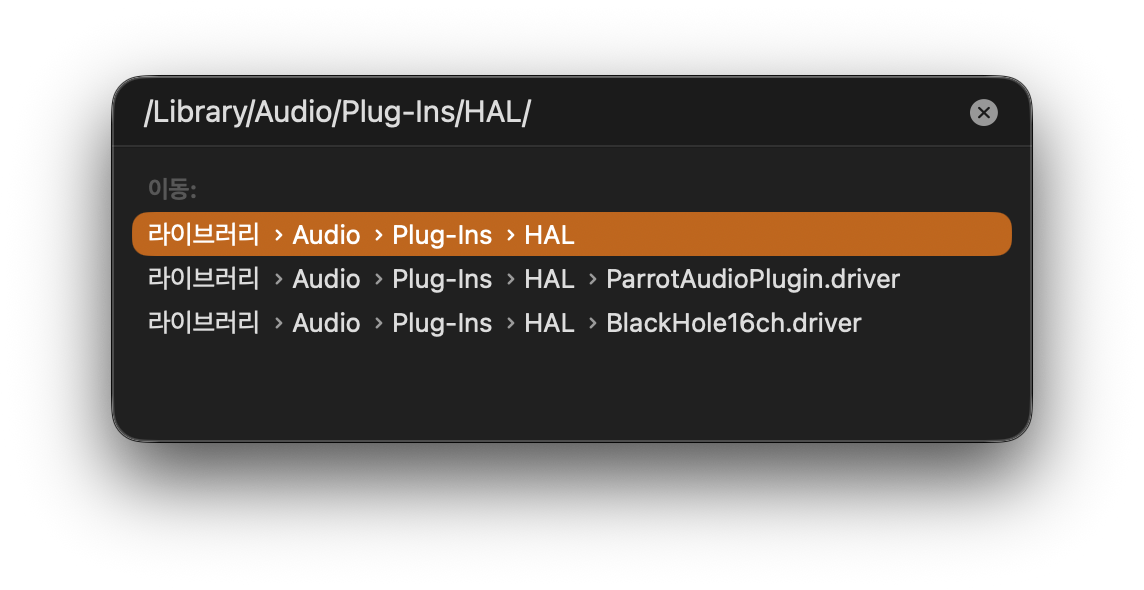 Navigate to
 /Library/Audio/Plug-Ins/HAL/ in Finder
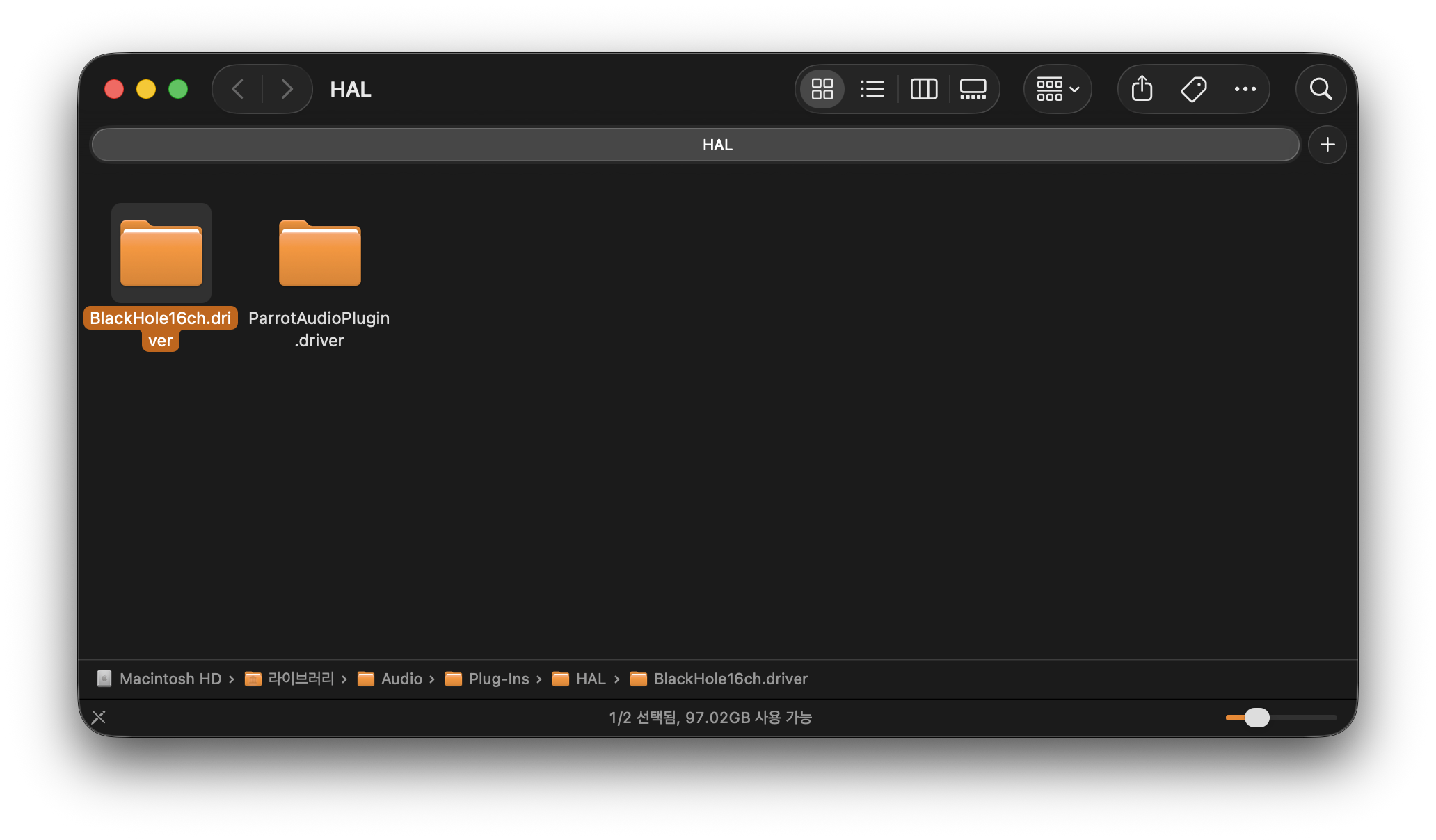 Delete BlackHole16ch.driver to uninstall



Leave a comment