
Playground
Router
[Router] How to Enable HTTPS on ASUS Router Settings Page
Overview
This guide explains how to enable HTTPS for the ASUS router settings page.
Steps
1. Access the ASUS Settings Page
- http://192.168.50.1
- http://router.asus.com
2. Advanced Settings - Administration - System
2.1. Configure the Local Access Settings as Follows
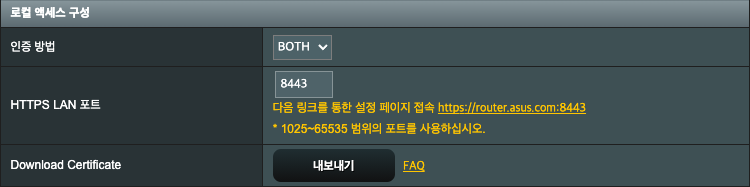
- Authentication Method: BOTH or HTTPS
- HTTPS LAN Port: 8443
- Click the Export button under Download Certificate to download the
*.crtfile. - Double-click the downloaded file to register it in the Keychain login items.
3. Register and Trust the Certificate in Keychain
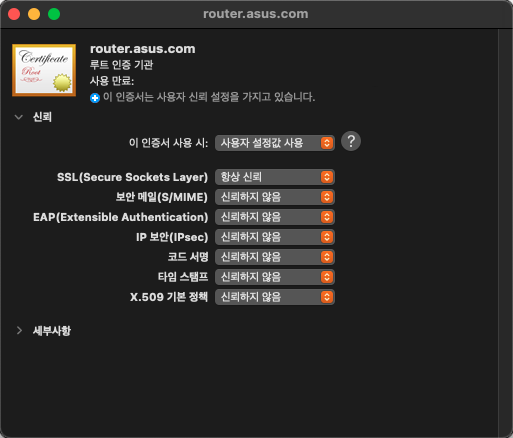
- Right-click the certificate named
router.asus.comin Keychain and click Get Info. - Change the SSL (Secure Sockets Layer) setting to Always Trust as shown in the screenshot above.
4. Verify HTTPS Access
- Enter https://router.asus.com:8443 in your browser and verify the connection.



Leave a comment